
Loading video player…

Use Codex CLI to Enhance Your Python Projects (Overview)

After watching this video course, you’ll be able to use Codex CLI to add features to a Python project directly from your terminal. Codex CLI is an AI-powered coding assistant that runs inside your terminal. It understands your project structure, reads your files, and proposes multi-file changes using natural language instructions.

Instead of copying code from a browser or relying on an IDE plugin, you’ll use Codex CLI to implement a real feature in a multi-file Python project directly from your terminal.

In the following lessons, you’ll install and configure Codex CLI, use it to implement a deletion feature in a contact book app, and then refine that feature through iterative prompting.
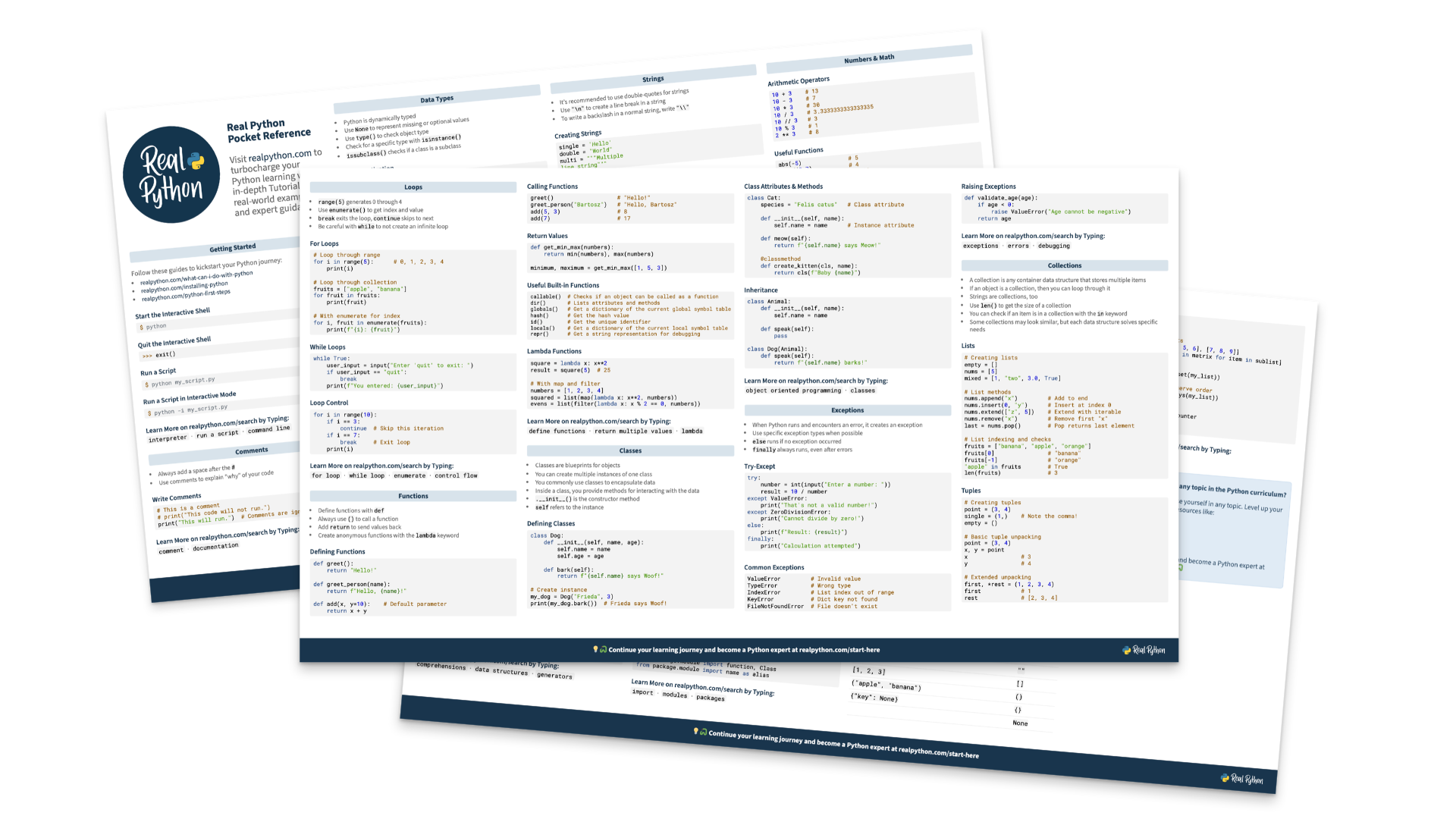
Download

Course Slides (.pdf)

1.2 MB
Download

Sample Code (.zip)

8.6 KB

00:00 Hey there, I’m Rodrigo, and it’s my pleasure to welcome you to this Real Python course on how to use Codex CLI to enhance your Python projects. This course is for you if you want to learn how to use LLMs from the comfort of your terminal and you’re interested in using tools from OpenAI, namely Codex CLI.

00:20 In this course, you’re going to learn to install and set up Codex CLI so that you can use it directly from your terminal. You’re going to use Codex CLI to work on a almost finished Python project that will be provided as a downloadable for you.

00:36 You’ll learn about the Codex CLI Plan mode and its advantages, and you’ll also implement and refine features in your Python project without writing a single line of code, because you’ll be using natural language instructions.

00:50 Before you start using Codex CLI, and by the way, CLI stands for command-line interface, before you start using this, you’ll want to check that you have all of the prerequisites that are necessary for this course.

01:03 In this case, you just need to make sure you install uv on your machine. Now don’t worry if you’ve never used uv before, because you’ll only use uv a couple of times and the lessons will guide you through the exact commands you need to type, but you do need to have uv installed, so if you don’t have it yet, feel free to pause and install it now.

01:25 Another thing to keep in mind is that since you’re going to be interacting with LLMs through Codex CLI, you’ll have to type in prompts. And one thing that’s important to keep in mind is that while the prompts that were used in this course are available in the downloadable materials so that you can copy and paste them, the prompts are provided for convenience, because you don’t need to type in the exact same prompts.

01:53 After all, LLMs are non-deterministic and even if you type in the exact same prompts, you’ll get slightly different results. So you should be more focused on having a similar sort of output that fulfills more or less the same constraints than being worried about getting the exact same output as the one that’s shown in the lessons.

02:19 Alright, with this out of the way, when you’re ready to start setting up your projects and everything on your machine, feel free to move on to the next lesson.

Become a Member to join the conversation.