
Loading video player…

Convert PDFs and Excel Into LLM-Ready Markdown With Python

Your LLM can turn a PDF into Markdown for you, but it spends tokens doing it and you get little say in the result. In this video, you’ll do the conversion yourself in Python with Microsoft’s MarkItDown library and get documents your LLM can read cheaply and reliably.

Negar Vahid starts with why LLMs love Markdown: it keeps headings, lists, and tables while using far fewer tokens than HTML or XML. Then you’ll install MarkItDown, verify the setup, and convert an Excel spreadsheet into a clean Markdown table in four lines of code.

The video wraps up with a challenge: batch-convert a folder of PDFs, Word files, and spreadsheets with MarkItDown and pathlib. The full course goes further, with the MarkItDown MCP server in Claude Desktop, image descriptions with OpenAI, and the library’s limits.

Resources mentioned in this lesson:
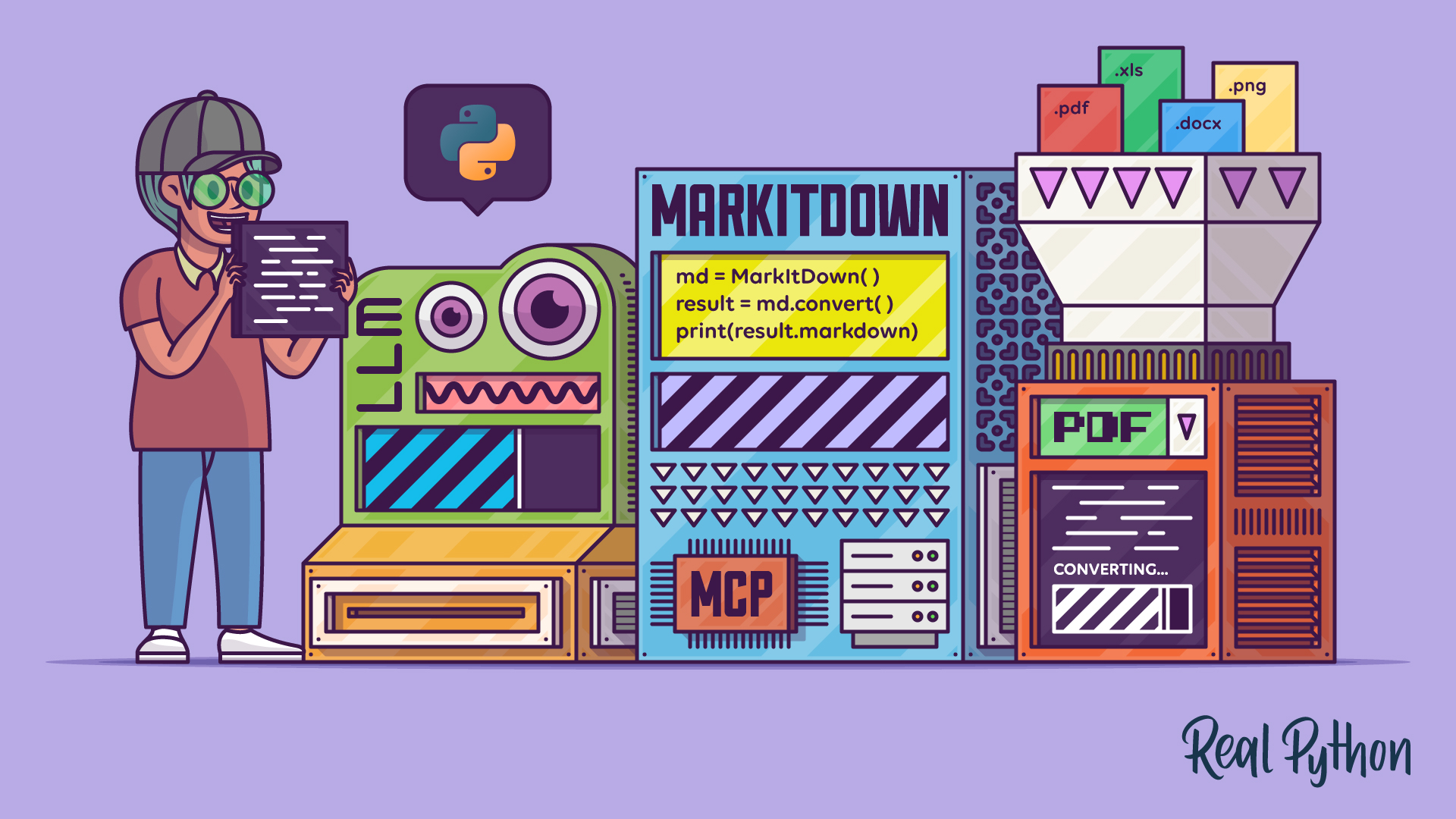
Python MarkItDown: Convert Documents Into LLM-Ready Markdown

Course

Converting Documents to Markdown With MarkItDown

Learn how to use MarkItDown to convert Excel files, PDFs, and images into clean Markdown that's ready for LLMs and AI workflows.
intermediate ai tools

00:00 This is Negar with Real Python. I’ll be your guide throughout the video course Converting Documents to Markdown with MarkItDown. You’ve probably come across the .md or Markdown format by now.

00:12 You have skills.md, context.md, and so on. You’ve probably even seen your favorite LLM, like Claude, has turned different documents, like PDFs and such, into md files.

00:25 But why? This conversion sometimes spends a lot of tokens. And besides that, what if you wanted to do it yourself? Maybe you want to have more control over the process.

00:35 What’s the actual best way to feed your documents to an LLM? One of the possible answers is the MarkItDown library in Python. This course walks you through understanding why LLMs love Markdown so much and how you can set up MarkItDown to convert your documents.

00:53 Then, you’ll actually use MarkItDown to convert formats like PDFs and Excel files into Markdown. You’ll also learn how you can use MarkItDown within Claude Desktop itself by using the MarkItDown MCP.

01:07 You’ll also feed an image to OpenAI and MarkItDown together to get an image description so you can directly feed that image description to LLMs. And finally, you’ll understand the limitations of MarkItDown and what to do when it can’t get the job done.

01:25 Okay, ready? Next up is understanding the importance of the Markdown format. You’re about to start setting up the MarkItDown library on your laptop or PC.

01:36 But first, you might be wondering, why the Markdown format? Why do you need to turn formats like PDF or CSV into Markdown? It’s because Markdown, or the .md file format, comes with its own advantages.

01:52 The Markdown format keeps text straightforward while preserving document structure. It represents headings, lists, links, tables, code blocks, and emphasis using lightweight syntax instead of complex formatting instructions.

02:08 Markdown format matches the format LLMs already understand well. And this is because LLMs are commonly trained on Markdown heavy content, such as documentation, readme files from GitHub, forum posts, and in general, technical articles.

02:26 So structures like heading or list items and fenced code blocks are straightforward for them to interpret. And finally, the Markdown format uses fewer tokens than many other structured formats.

02:40 Markdown usually requires less markup than formats like HTML or XML.

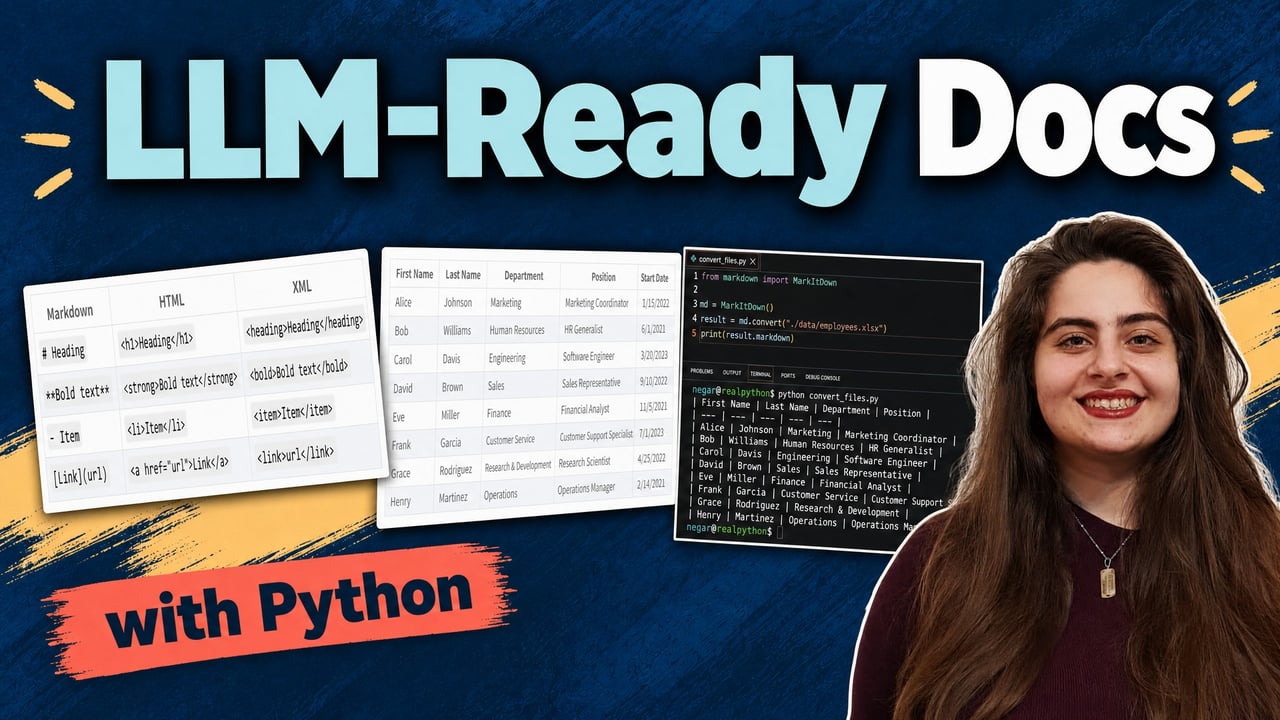
02:47 To grasp this better, look at this table. You can see three columns. You have Markdown on the left, then you have HTML, and XML on the right. If you were to specify a heading, you just need a hash symbol in Markdown.

03:01 And in HTML, you’d need to open and close the heading tag. And it’s the same with many other things like bold text, lists, or creating a linked text. Markdown is generally shorter, and because of that, it uses fewer tokens when it comes to LLMs processing information.

03:20 Now you understand that Markdown is a convenient way to feed information to LLMs. Next, you need to set up MarkItDown so you can convert formats like PDF or Docx into Markdown.

03:34 Now back to the main goal. MarkItDown is a Python library that lets you convert formats like PDF, PowerPoint, HTML, JSON, and others into Markdown. It lets you get image descriptions with minimal and straightforward code.

03:51 And as you learned before, MarkItDown helps you reduce token usage with Markdown output. And finally, you can use MarkItDown with minimal setup through Python or the CLI.

04:03 In this course, you’ll focus on the Python library specifically, but you can check out the usage with CLI in the tutorial that this video course is based on.

04:14 In this course, you’ll focus on the Python library, but if you want to learn how you can use MarkItDown with the CLI, you can check out the Real Python tutorial this video course is based on called Python MarkItDown: Convert Documents Into LLM-Ready Markdown.

04:30 You can find the link in the material section of this lesson.

04:36 Okay, how can you install it? You’ll need to create a virtual environment. If you’d like more information about how you can do it, check out Real Python’s video course or tutorial on virtual environments.

04:48 You can find them in the material section of this lesson. After that, you’ll install MarkItDown using pip and then verify its installation by checking its version.

04:59 Let’s go do that. Here, you have a folder called markitdown-realpython, and you’re inside the virtual environment that you’ve created before. Now, to install MarkItDown, you can say python -m pip install single quote markitdown And then here, you have to say [all].

05:23 This all refers to the optional dependencies that takes care of the conversion for specific formats like PDF or docx or pptx. Here, you’re installing all of them together, and then you close the single quote.

05:49 Okay, looks good. Now, you can verify your installation using markitdown –version.

05:59 And here, you get the version. So, it means you successfully installed MarkItDown.

06:05 Now, it’s time to actually use MarkItDown. For starters, you can download the materials for this course by clicking on the supporting material button below.

06:15 After that, you should be able to find the following files under the data subdirectory. You have different formats like CSV, Excel, PDF, and so on.

06:26 Your first goal is converting the employee’s Excel file into Markdown. You can see the Excel file here. You have columns, first name, last name, department, position, and start date.

06:38 Okay, let’s go ahead and start your first challenge, which is converting employees.xlsx into Markdown using MarkItDown. Inside of the directory markitdown-realpython, I’ve created convert_files.py.

06:53 You can see that my data is also here. And the first thing you need to do is import the MarkItDown class from the markitdown package. From markitdown, import MarkItDown.

07:07 Pay attention that the first markitdown, so from markitdown, is all lowercase. But import MarkItDown, you need to capitalize M, I, and D.

07:22 Then, you need to create an instance. M, I, and D. Then, you need to create an instance of the MarkItDown class and store it in the variable md. So, md equals MarkItDown.

07:36 Pay attention that M, I, and D are capitalized and open close parentheses. You can think of md as your converter object. You’ll call its methods whenever you want to convert a file.

07:50 And now, you can call the .convert() method on the converter and store it in result. So, result equals md.convert. And then, inside of the parentheses, you need to put the path of the file you want to convert.

08:07 For you, it’s the employees dot xlsx inside of the data subfolder in your root directory. So, open quotes, ./data/ employees.xlsx. And then, close the quotes.

08:25 And finally, you want to access the Markdown text stored inside the results using .markdown. And you can print it afterwards. So, print result.markdown. Okay, perfect.

08:40 Now, we can go to the terminal and run this. So, python convert_files.py.

08:53 And here you go. You have the same columns that you saw before. You have successfully created an .md file out of the Excel sheet. Well done. You just converted your first file using MarkItDown.

09:06 Here’s a challenge for you. What if you wanted to batch convert files in several different formats using the same script? And here’s a hint for you. You’ll need both MarkItDown and Python’s pathlib library.

09:18 Whenever you come up with your solution, you can test it out using the files from the course materials you downloaded earlier, except for the PNG files. You’ll deal with the PNG files in next lessons.

09:30 You’ll also find a sample solution called batch_converter.py in the course materials. Try writing your own solutions first and then check it out. Okay, now you understand how and why to use the MarkItDown library.

09:44 But what if you wanted to use MarkItDown while chatting with an LLM like Claude? In the next lesson, you’ll learn how to connect the MarkItDown MCP server to your LLM.

Become a Member to join the conversation.