Python Dev Environment Cheat Sheet
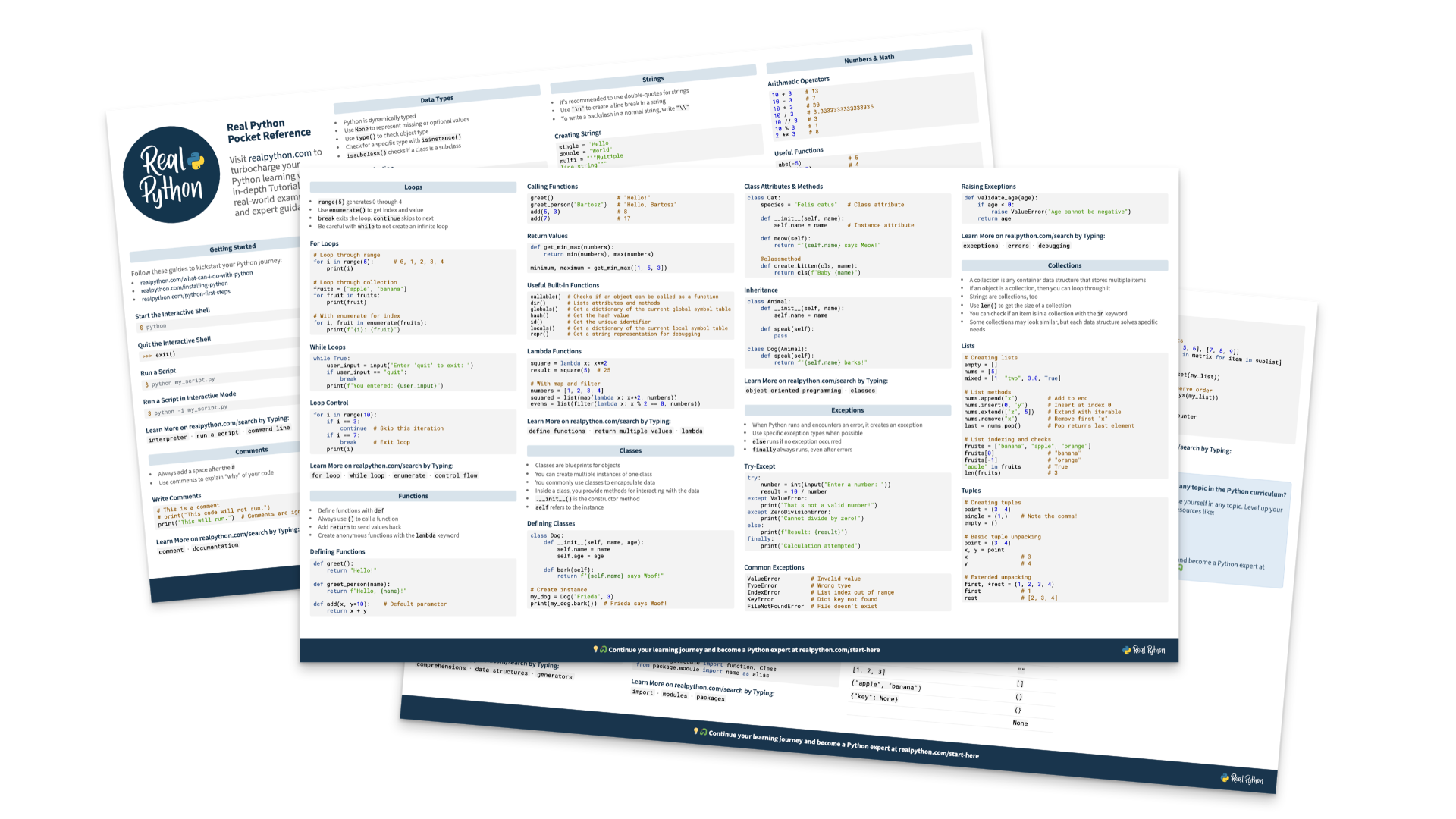
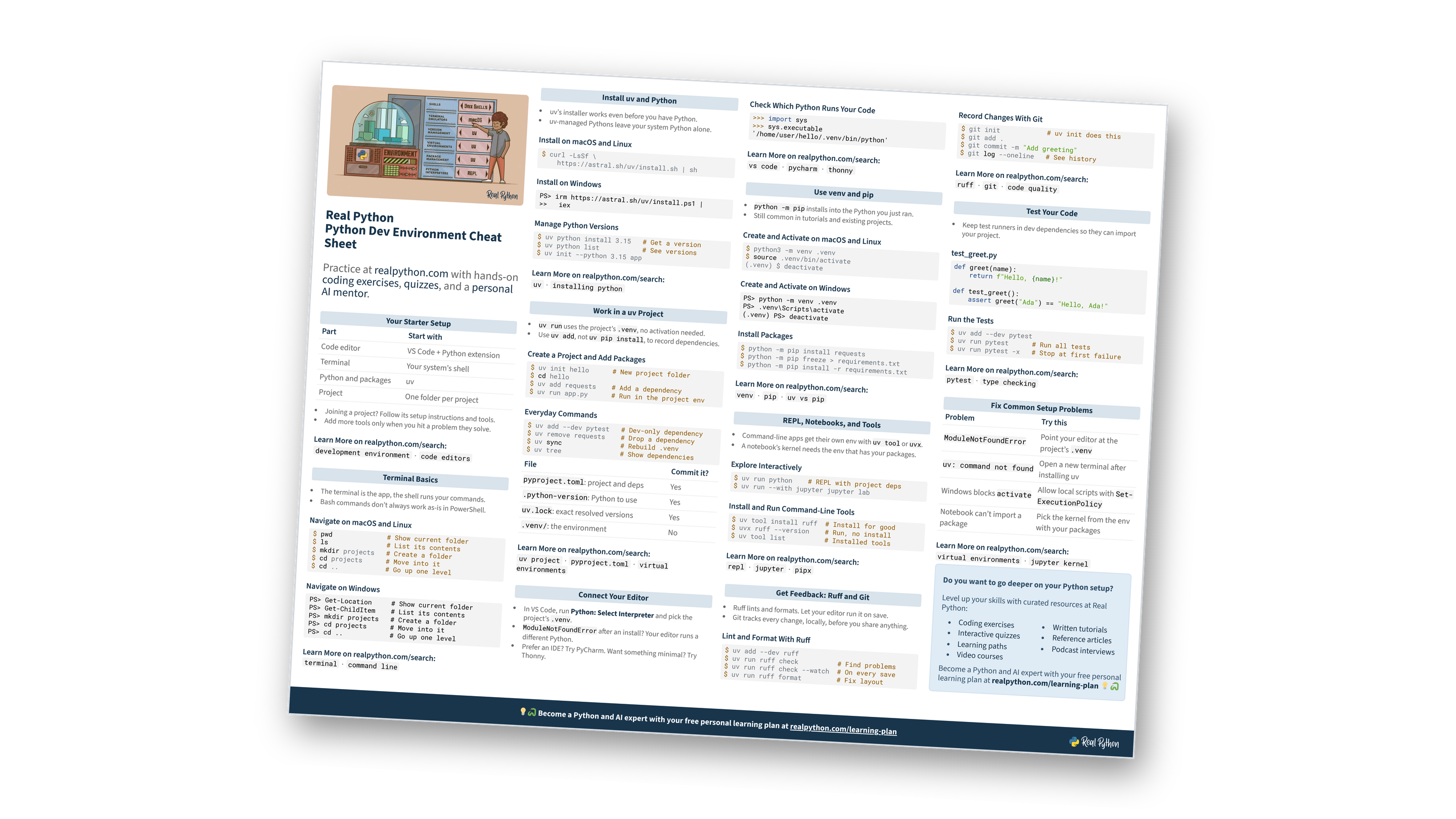
This page condenses how to set up a Python development environment into one reference: the terminal, installing uv and Python, working in uv projects, connecting your editor, venv and pip, REPLs and notebooks, Ruff, Git, and testing. You can also download the information as a printable cheat sheet:
Free Bonus: Python Dev Environment Cheat Sheet
Get a Python Dev Environment Cheat Sheet (PDF) with the terminal, uv, venv, editor, Ruff, and Git commands you need to set up and run your Python projects:
Practice with hands-on coding exercises, quizzes, and a personal AI mentor. Not sure what to learn next? Get your free personal learning plan.
Setting up Python for the first time?
Your Starter Setup
- Joining a project? Follow its setup instructions and tools.
- Add more tools only when you hit a problem they solve.
| Part | Start with |
|---|---|
| Code editor | VS Code + Python extension |
| Terminal | Your system’s shell |
| Python and packages | uv |
| Project | One folder per project |
Not sure what you actually need?
Terminal Basics
- The terminal is the app, the shell runs your commands.
- Bash commands don’t always work as-is in PowerShell.
Navigate on macOS and Linux
$ pwd              # Show current folder
$ ls               # List its contents
$ mkdir projects   # Create a folder
$ cd projects      # Move into it
$ cd ..            # Go up one level
Navigate on Windows
PS> Get-Location     # Show current folder
PS> Get-ChildItem    # List its contents
PS> mkdir projects   # Create a folder
PS> cd projects      # Move into it
PS> cd ..            # Go up one level
Want more practice in the terminal?
Install uv and Python
- uv’s installer works even before you have Python.
- uv-managed Pythons leave your system Python alone.
Install on macOS and Linux
$ curl -LsSf \
    https://astral.sh/uv/install.sh | sh
Install on Windows
PS> irm https://astral.sh/uv/install.ps1 |
>>   iex
Manage Python Versions
$ uv python install 3.15   # Get a version
$ uv python list           # See versions
$ uv init --python 3.15 app
Worried about multiple Pythons?
Work in a uv Project
uv runuses the project’s.venv, no activation needed.- Use
uv add, notuv pip install, to record dependencies.
Create a Project and Add Packages
$ uv init hello      # New project folder
$ cd hello
$ uv add requests    # Add a dependency
$ uv run app.py      # Run in the project env
Everyday Commands
$ uv add --dev pytest   # Dev-only dependency
$ uv remove requests    # Drop a dependency
$ uv sync               # Rebuild .venv
$ uv tree               # Show dependencies
| File | Commit it? |
|---|---|
pyproject.toml: project and deps |
Yes |
.python-version: Python to use |
Yes |
uv.lock: exact resolved versions |
Yes |
.venv/: the environment |
No |
Think you’ve got uv projects down?
Free Bonus: Click here to download your free Python dev environment cheat sheet (PDF) with the uv, venv, terminal, editor, Ruff, and Git commands you’ll reach for when setting up a Python project.
Connect Your Editor
- In VS Code, run Python: Select Interpreter and pick the project’s
.venv. ModuleNotFoundErrorafter an install? Your editor runs a different Python.- Prefer an IDE? Try PyCharm. Want something minimal? Try Thonny.
Check Which Python Runs Your Code
>>> import sys
>>> sys.executable
'/home/user/hello/.venv/bin/python'
Editor can’t find your packages?
Use venv and pip
python -m pipinstalls into the Python you just ran.- Still common in tutorials and existing projects.
Create and Activate on macOS and Linux
$ python3 -m venv .venv
$ source .venv/bin/activate
(.venv) $ deactivate
Create and Activate on Windows
PS> python -m venv .venv
PS> .venv\Scripts\activate
(.venv) PS> deactivate
Install Packages
$ python -m pip install requests
$ python -m pip freeze > requirements.txt
$ python -m pip install -r requirements.txt
Still fuzzy on virtual environments?
REPL, Notebooks, and Tools
- Command-line apps get their own env with
uv tooloruvx. - A notebook’s kernel needs the env that has your packages.
Explore Interactively
$ uv run python    # REPL with project deps
$ uv run --with jupyter jupyter lab
Install and Run Command-Line Tools
$ uv tool install ruff  # Install for good
$ uvx ruff --version    # Run, no install
$ uv tool list          # Installed tools
Project dependency or standalone tool?
Get Feedback: Ruff and Git
- Ruff lints and formats. Let your editor run it on save.
- Git tracks every change, locally, before you share anything.
Lint and Format With Ruff
$ uv add --dev ruff
$ uv run ruff check          # Find problems
$ uv run ruff check --watch  # On every save
$ uv run ruff format         # Fix layout
Record Changes With Git
$ git init            # uv init does this
$ git add .
$ git commit -m "Add greeting"
$ git log --oneline   # See history
Ready to test yourself?
Free Bonus: Click here to download your free Python dev environment cheat sheet (PDF) with the uv, venv, terminal, editor, Ruff, and Git commands you’ll reach for when setting up a Python project.
Test Your Code
- Keep test runners in dev dependencies so they can import your project.
test_greet.py
def greet(name):
    return f"Hello, {name}!"

def test_greet():
    assert greet("Ada") == "Hello, Ada!"
Run the Tests
$ uv add --dev pytest
$ uv run pytest      # Run all tests
$ uv run pytest -x   # Stop at first failure
Want to go deeper on testing?
Fix Common Setup Problems
| Problem | Try this |
|---|---|
ModuleNotFoundError |
Point your editor at the project’s .venv |
uv: command not found |
Open a new terminal after installing uv |
Windows blocks activate |
Allow local scripts with Set-ExecutionPolicy |
| Notebook can’t import a package | Pick the kernel from the env with your packages |
Stuck on a different setup problem?
Do you want to go deeper on your Python setup?
Level up your skills with curated resources at Real Python:
- Coding exercises
- Interactive quizzes
- Learning paths
- Video courses
- Written tutorials
- Reference articles
- Podcast interviews
Become a Python and AI expert with your free personal learning plan at realpython.com/learning-plan 💡🐍
Ready to go beyond the cheat sheet?
You can download this information as a printable cheat sheet:
Free Bonus: Python Dev Environment Cheat Sheet
Get a Python Dev Environment Cheat Sheet (PDF) with the terminal, uv, venv, editor, Ruff, and Git commands you need to set up and run your Python projects: