File and Folder Automation Cheat Sheet
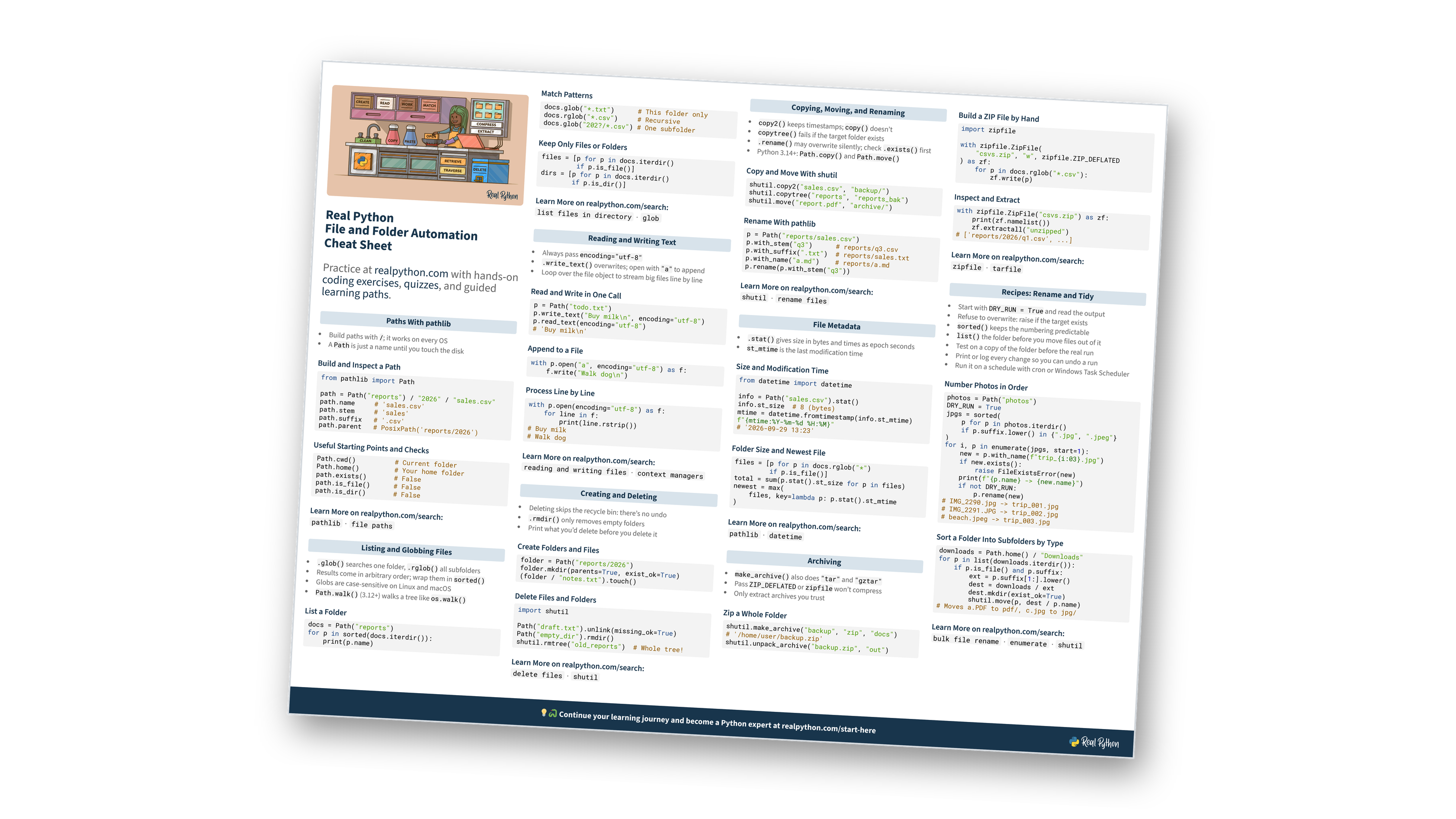
This page contains a condensed overview of automating file and folder tasks in Python. It covers building paths with pathlib, listing and globbing files, reading and writing text, creating and deleting, copying and moving with shutil, file metadata, archiving with zipfile, and ready-to-adapt recipes for renaming and tidying folders. You can also download the information as a printable cheat sheet:
Free Bonus: File and Folder Automation Cheat Sheet
Get a File and Folder Automation Cheat Sheet (PDF) and keep pathlib, shutil, and zipfile recipes for renaming, sorting, copying, and archiving files at hand:
Practice with hands-on coding exercises, quizzes, and guided learning paths. Not sure where to begin? Start here.
New to automating files with Python?
Paths With pathlib
- Build paths with
/; it works on every OS - A
Pathis just a name until you touch the disk
Build and Inspect a Path
from pathlib import Path

path = Path("reports") / "2026" / "sales.csv"
path.name     # 'sales.csv'
path.stem     # 'sales'
path.suffix   # '.csv'
path.parent   # PosixPath('reports/2026')
Useful Starting Points and Checks
Path.cwd()          # Current folder
Path.home()         # Your home folder
path.exists()       # False
path.is_file()      # False
path.is_dir()       # False
Want to go deeper on pathlib?
Listing and Globbing Files
.glob()searches one folder,.rglob()all subfolders- Results come in arbitrary order; wrap them in
sorted() - Globs are case-sensitive on Linux and macOS
Path.walk()(3.12+) walks a tree likeos.walk()
List a Folder
docs = Path("reports")
for p in sorted(docs.iterdir()):
    print(p.name)
Match Patterns
docs.glob("*.txt")      # This folder only
docs.rglob("*.csv")     # Recursive
docs.glob("202?/*.csv") # One subfolder
Keep Only Files or Folders
files = [p for p in docs.iterdir()
         if p.is_file()]
dirs = [p for p in docs.iterdir()
        if p.is_dir()]
Think you can predict what a glob matches?
Reading and Writing Text
- Always pass
encoding="utf-8" .write_text()overwrites; open with"a"to append- Loop over the file object to stream big files line by line
Read and Write in One Call
p = Path("todo.txt")
p.write_text("Buy milk\n", encoding="utf-8")
p.read_text(encoding="utf-8")
# 'Buy milk\n'
Append to a File
with p.open("a", encoding="utf-8") as f:
    f.write("Walk dog\n")
Process Line by Line
with p.open(encoding="utf-8") as f:
    for line in f:
        print(line.rstrip())
# Buy milk
# Walk dog
One call or a with block?
Creating and Deleting
- Deleting skips the recycle bin: there’s no undo
.rmdir()only removes empty folders- Print what you’d delete before you delete it
Create Folders and Files
folder = Path("reports/2026")
folder.mkdir(parents=True, exist_ok=True)
(folder / "notes.txt").touch()
Delete Files and Folders
import shutil

Path("draft.txt").unlink(missing_ok=True)
Path("empty_dir").rmdir()
shutil.rmtree("old_reports")  # Whole tree!
Nervous about deleting the wrong thing?
Free Bonus: Download the File and Folder Automation Cheat Sheet PDF and keep the essentials at hand.
Copying, Moving, and Renaming
copy2()keeps timestamps;copy()doesn’tcopytree()fails if the target folder exists.rename()may overwrite silently; check.exists()first- Python 3.14+:
Path.copy()andPath.move()
Copy and Move With shutil
shutil.copy2("sales.csv", "backup/")
shutil.copytree("reports", "reports_bak")
shutil.move("report.pdf", "archive/")
Rename With pathlib
p = Path("reports/sales.csv")
p.with_stem("q3")      # reports/q3.csv
p.with_suffix(".txt")  # reports/sales.txt
p.with_name("a.md")    # reports/a.md
p.rename(p.with_stem("q3"))
Think you know when files get overwritten?
File Metadata
.stat()gives size in bytes and times as epoch secondsst_mtimeis the last modification time
Size and Modification Time
from datetime import datetime

info = Path("sales.csv").stat()
info.st_size  # 8 (bytes)
mtime = datetime.fromtimestamp(info.st_mtime)
f"{mtime:%Y-%m-%d %H:%M}"
# '2026-09-29 13:23'
Folder Size and Newest File
files = [p for p in docs.rglob("*")
         if p.is_file()]
total = sum(p.stat().st_size for p in files)
newest = max(
    files, key=lambda p: p.stat().st_mtime
)
Want to put timestamps to work?
Archiving
make_archive()also does"tar"and"gztar"- Pass
ZIP_DEFLATEDorzipfilewon’t compress - Only extract archives you trust
Zip a Whole Folder
shutil.make_archive("backup", "zip", "docs")
# '/home/user/backup.zip'
shutil.unpack_archive("backup.zip", "out")
Build a ZIP File by Hand
import zipfile

with zipfile.ZipFile(
    "csvs.zip", "w", zipfile.ZIP_DEFLATED
) as zf:
    for p in docs.rglob("*.csv"):
        zf.write(p)
Inspect and Extract
with zipfile.ZipFile("csvs.zip") as zf:
    print(zf.namelist())
    zf.extractall("unzipped")
# ['reports/2026/q1.csv', ...]
Still unsure which archiving tool to reach for?
Recipes: Rename and Tidy
- Start with
DRY_RUN = Trueand read the output - Refuse to overwrite: raise if the target exists
sorted()keeps the numbering predictablelist()the folder before you move files out of it- Test on a copy of the folder before the real run
- Print or log every change so you can undo a run
- Run it on a schedule with cron or Windows Task Scheduler
Number Photos in Order
photos = Path("photos")
DRY_RUN = True
jpgs = sorted(
    p for p in photos.iterdir()
    if p.suffix.lower() in {".jpg", ".jpeg"}
)
for i, p in enumerate(jpgs, start=1):
    new = p.with_name(f"trip_{i:03}.jpg")
    if new.exists():
        raise FileExistsError(new)
    print(f"{p.name} -> {new.name}")
    if not DRY_RUN:
        p.rename(new)
# IMG_2290.jpg -> trip_001.jpg
# IMG_2291.JPG -> trip_002.jpg
# beach.jpeg -> trip_003.jpg
Sort a Folder Into Subfolders by Type
downloads = Path.home() / "Downloads"
for p in list(downloads.iterdir()):
    if p.is_file() and p.suffix:
        ext = p.suffix[1:].lower()
        dest = downloads / ext
        dest.mkdir(exist_ok=True)
        shutil.move(p, dest / p.name)
# Moves a.PDF to pdf/, c.jpg to jpg/
Want to run this on your real Downloads folder?
Ready to go beyond the cheat sheet?
You can download this information as a printable cheat sheet:
Free Bonus: File and Folder Automation Cheat Sheet
Get a File and Folder Automation Cheat Sheet (PDF) and keep pathlib, shutil, and zipfile recipes for renaming, sorting, copying, and archiving files at hand:
