
If you chose to use VS Code, here’s more information. But you don’t need to read this text in full now. Indeed, you shouldn’t read this now, but you can return to it as a reference as and when you need it.
This text is part of a Real Python tutorial by Jon Fincher.
One of the coolest code editors available to programmers, Visual Studio Code, is an open-source, extensible, light-weight editor available on all platforms. It’s these qualities that make Visual Studio Code from Microsoft very popular, and a great platform for Python development.
In this lesson, you’ll learn about Python development in Visual Studio Code, including how to:
- Install Visual Studio Code
- Discover and install extensions that make Python development easy
- Write a straightforward Python application
- Learn how to run and debug existing Python programs in VS Code
- Connect Visual Studio Code to Git and GitHub to share your code with the world
Screenshots and demos for Ubuntu and Windows are provided. Because Visual Studio Code runs on all major platforms, you may see slightly different UI elements and may need to modify certain commands.
If you already have a basic VS Code setup and you’re hoping to dig deeper than the goals in this tutorial, you might want to explore some advanced features in VS Code.
Installing and Configuring Visual Studio Code for Python Development
Installing Visual Studio Code is very accessible on any platform. Full instructions for Windows, Mac, and Linux are available, and the editor is updated monthly with new features and bug fixes. You can find everything at the Visual Studio Code website:
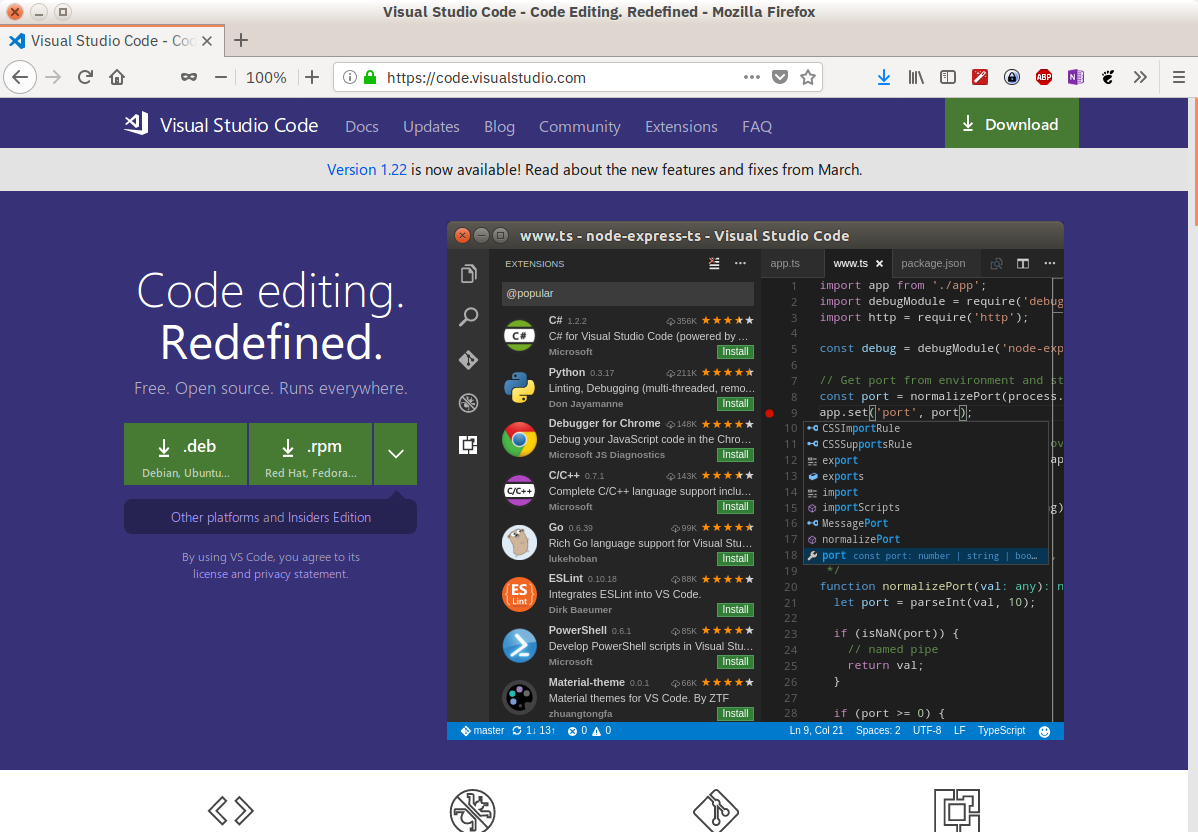
In case you were wondering, Visual Studio Code (or VS Code for short) shares almost nothing other than a name with its larger Windows-based namesake, Visual Studio.
Note: To learn how to set up VS Code as part of a full Python coding environment on a Windows machine, check out this comprehensive guide.
Visual Studio Code has built-in support for multiple languages and an extension model with a rich ecosystem of support for others. VS Code is updated monthly, and you can keep up to date at the Microsoft Python blog. Microsoft even makes the VS Code GitHub repo available for anyone to clone and contribute. (Cue the PR flood.)
The VS Code UI is well documented, so I won’t rehash it here:
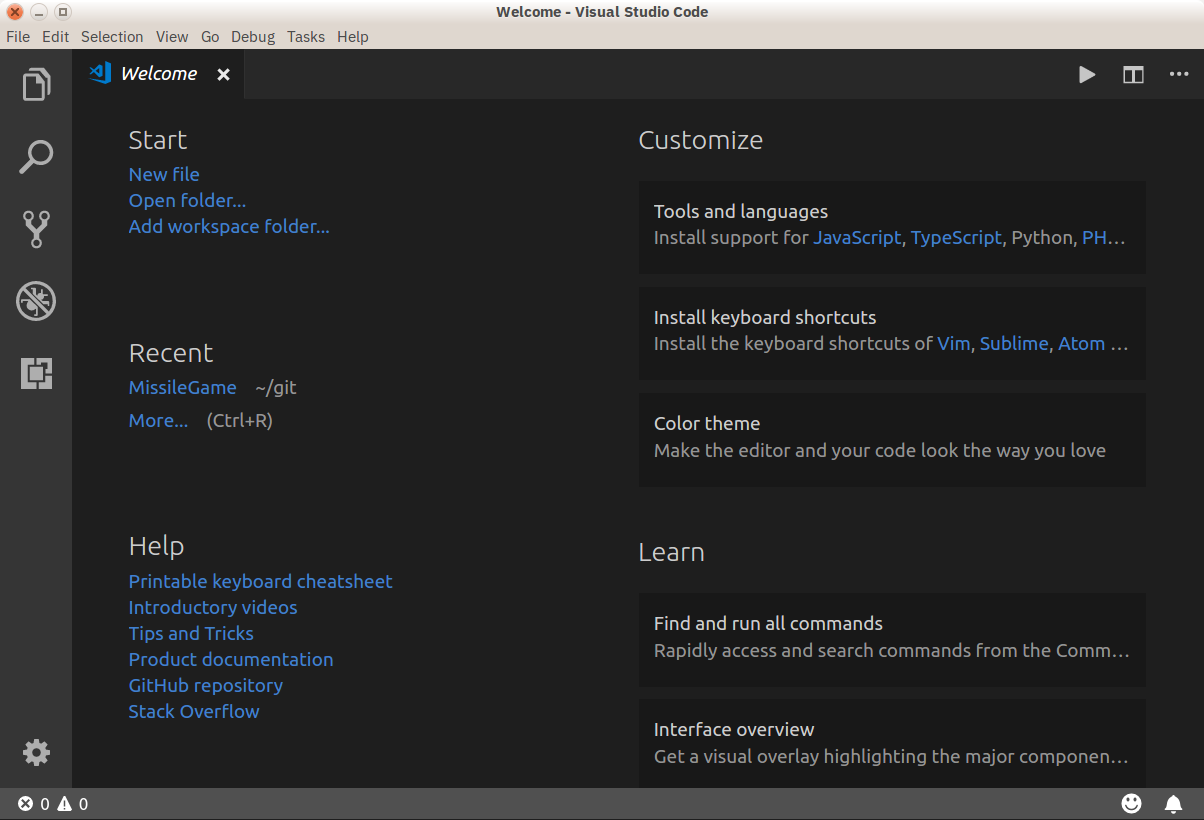
Extensions for Python Development
As stated above, VS Code supports development in multiple programming languages through a well-documented extension model. The Python extension enables Python development in Visual Studio Code, with the following features:
- Support for Python 3.4 and higher, as well as Python 2.7
- Code completion with IntelliSense
- Linting
- Debugging support
- Code snippets
- Unit testing support
- Automatic use of conda and virtual environments
- Code editing in Jupyter environments and Jupyter Notebooks
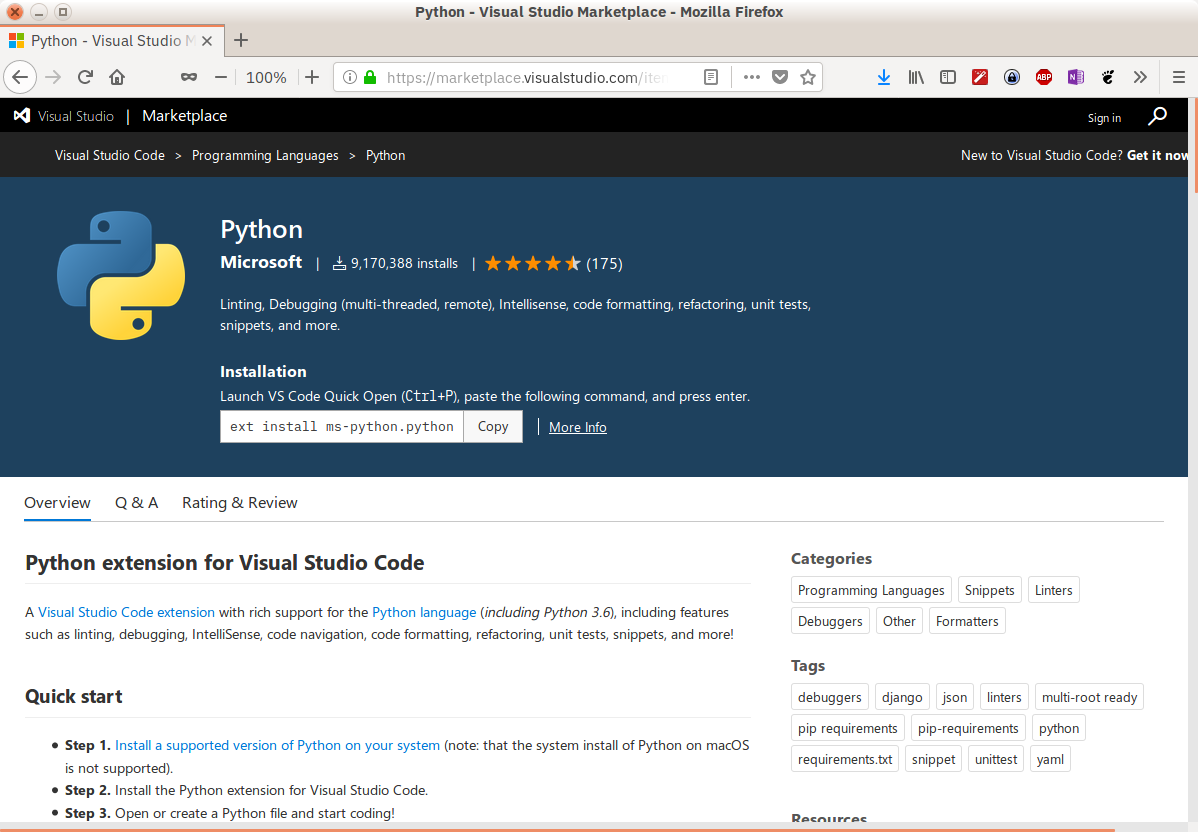
Visual Studio Code extensions cover more than just programming language capabilities:
-
Keymaps allow users already familiar with Atom, Sublime Text, Emacs, Vim, PyCharm, or other environments to feel at home.
-
Themes customize the UI whether you like coding in the light, dark, or something more colorful.
-
Language packs provide a localized experience.
Here are some other extensions and settings I find useful:
-
GitLens provides tons of useful Git features directly in your editing window, including blame annotations and repository exploration features.
-
Auto save is easily turned on by selecting
File, Auto Savefrom the menu. The default delay time is 1000 milliseconds, which is also configurable. -
Settings Sync allows you to synchronize your VS Code settings across different installations using GitHub. If you work on different machines, this helps keep your environment consistent across them.
-
Docker lets you quickly and easily work with Docker, helping author
Dockerfileanddocker-compose.yml, package and deploy your projects, and even generate the proper Docker files for your project.
Of course, you may discover other useful extensions as you use VS Code. Please share your discoveries and settings in the comments!

