One of the quickest ways to call multiple AI models from a single Python script is to use OpenRouter’s API, which acts as a unified routing layer between your code and multiple AI providers. By the end of this guide, you’ll access models from several providers through one unified API, as shown in the image below:
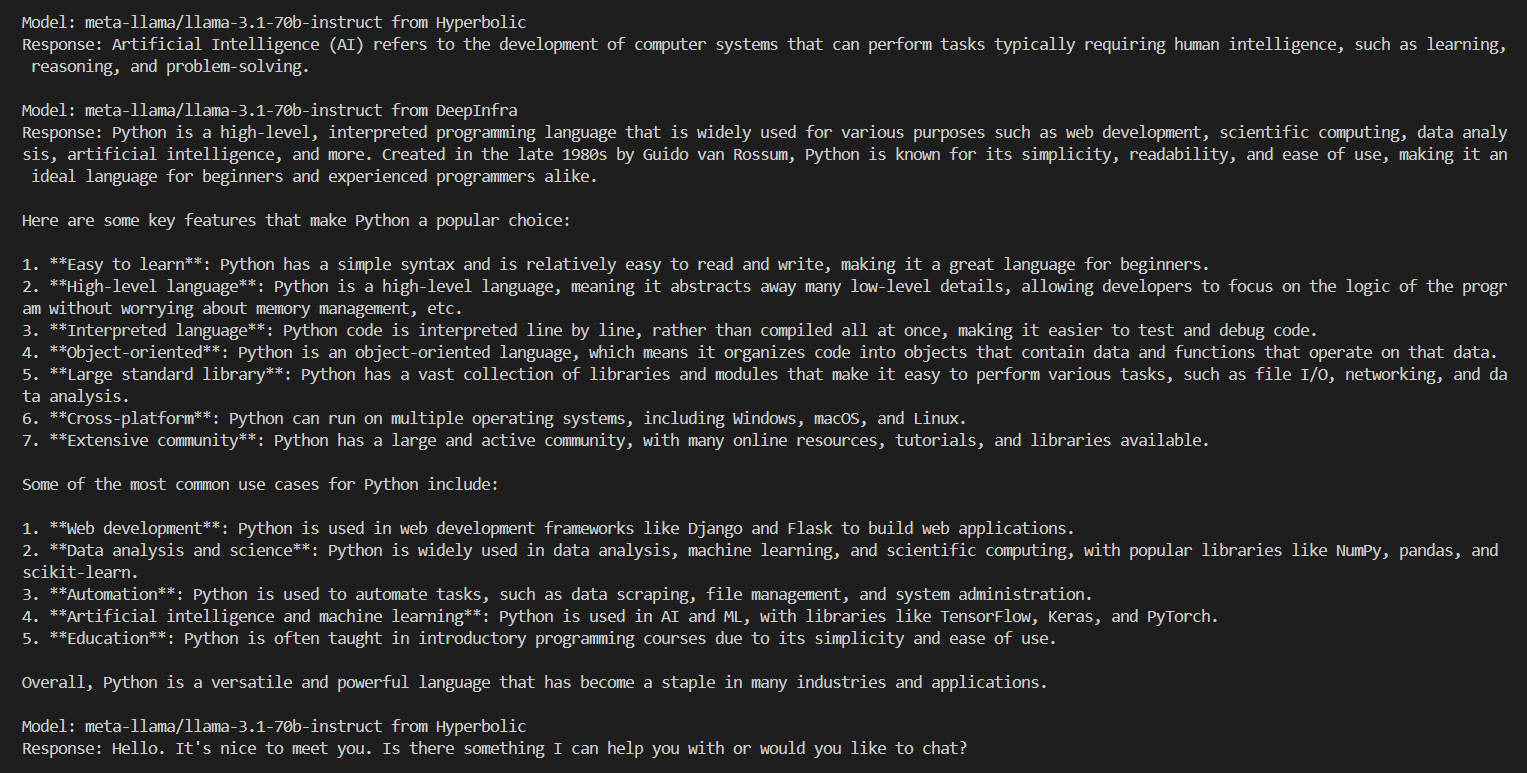
This convenience matters because the AI ecosystem is highly fragmented: each provider exposes its own API, authentication scheme, rate limits, and model lineup. Working with multiple providers often requires additional setup and integration effort, especially when you want to experiment with different models, compare outputs, or evaluate trade-offs for a specific task.
OpenRouter gives you access to thousands of models from leading providers such as OpenAI, Anthropic, Mistral, Google, and Meta. You switch between them without changing your application code.
Get Your Code: Click here to download the free sample code that shows you how to use the OpenRouter API to access multiple AI models via Python.
Take the Quiz: Test your knowledge with our interactive “How to Use the OpenRouter API to Access Multiple AI Models via Python” quiz. You’ll receive a score upon completion to help you track your learning progress:

Interactive Quiz
How to Use the OpenRouter API to Access Multiple AI Models via PythonTest your Python skills with OpenRouter: learn unified API access, model switching, provider routing, and fallback strategies.
Prerequisites
Before diving into OpenRouter, you should be comfortable with Python fundamentals like importing modules, working with dictionaries, handling exceptions, and using environment variables. If you’re familiar with these basics, the first step is authenticating with OpenRouter’s API.
Step 1: Connect to OpenRouter’s API
Before using OpenRouter, you need to create an account and generate an API key. Some models require prepaid credits for access, but you can start with free access to test the API and confirm that everything is working.
To generate an API key:
- Create an account at OpenRouter.ai or sign in if you already have an account.
- Select Keys from the dropdown menu and create an API key.
- Fill in the name, something like OpenRouter Testing.
- Leave the remaining defaults and click Create.
Copy the generated key and keep it secure. In a moment, you’ll store it as an environment variable rather than embedding it directly in your code.
To call multiple AI models from a single Python script, you’ll use OpenRouter’s API. You’ll use the requests library to make HTTP calls, which gives you full control over the API interactions without requiring a specific SDK. This approach works with any HTTP client and keeps your code simple and transparent.
First, create a new directory for your project and set up a virtual environment. This isolates your project dependencies from your system Python installation:
$ mkdir openrouter-project/
$ cd openrouter-project/
$ python -m venv venv/
Now, you can activate the virtual environment:
You should see (venv) in your terminal prompt when it’s active. Now you’re ready to install the requests package for conveniently making HTTP calls:
(venv) $ python -m pip install requests
Now, gather the API key you created before and set it as an OPENROUTER_API_KEY environment variable in your terminal session:
Replace your-api-key-here with your actual API key from the OpenRouter settings. Storing sensitive data such as your API key in environment variables keeps credentials out of your repository, reduces the risk of accidental leaks, and makes it easier to use different keys across environments.
Next, you’ll create a script to verify everything works. Create a file named get_models.py:
get_models.py
import os
import requests

OPENROUTER_MODELS_URL = "https://openrouter.ai/api/v1/models"

api_key = os.getenv("OPENROUTER_API_KEY")

headers = {"Authorization": f"Bearer {api_key}"}
response = requests.get(OPENROUTER_MODELS_URL, headers=headers)
data = response.json()

models = data.get("data", [])
print(f"Success! Found {len(models)} models via OpenRouter.")
print(f"Examples: {', '.join(m['id'] for m in models[:5])}")
The script loads your OpenRouter API key from the environment variables, sends an authenticated request to the OpenRouter models endpoint, and retrieves the list of available models. If the request succeeds, then it prints how many models are accessible and shows a few example model IDs.
When running get_models.py, you’ll see the total number of models along with a few example model names:
(venv) $ python get_models.py

Success! Found 345 models via OpenRouter.
Examples: writer/palmyra-x5, liquid/lfm-2.5-1.2b-thinking:free,
liquid/lfm-2.5-1.2b-instruct:free, openai/gpt-audio, openai/gpt-audio-mini
At this point, you’ve confirmed that your API key works and that your Python environment can successfully communicate with OpenRouter. With the basics in place, you can now move beyond simply listing models and start controlling how requests are routed across providers.
Step 2: Route Requests to Specific AI Providers
Now that you have OpenRouter’s API configured, you’re ready to explore intelligent routing. This is when you let OpenRouter choose a model for you.
First, create a new file named ask_auto_model.py. Use get_models.py as a starting point, but modify it to send a chat completion request instead of fetching the model list.
The structure is nearly identical: you load the API key, set up request headers, and make an HTTP request. The main differences are that you’ll use the chat completions endpoint, send a POST request, and include a JSON payload with a prompt:
ask_auto_model.py
 1import os
 2import requests
 3
 4OPENROUTER_API_URL = "https://openrouter.ai/api/v1/chat/completions"
 5
 6api_key = os.getenv("OPENROUTER_API_KEY")
 7
 8headers = {
 9    "Authorization": f"Bearer {api_key}",
10    "Content-Type": "application/json"
11}
12payload = {
13    "model": "openrouter/auto",
14    "messages": [{"role": "user", "content": "Say hello in one sentence."}]
15}
16response = requests.post(OPENROUTER_API_URL, headers=headers, json=payload)
17data = response.json()
18
19print(f"Model: {data.get('model')}")
20print(f"Response: {data['choices'][0]['message']['content']}")
The changes from get_models.py are minimal and limited to a few lines:
- Line 4: Switch to the chat completions URL
- Line 10: Add
Content-Type: application/jsonto the headers - Line 12: Build a JSON payload with
modelandmessages - Line 16: Call
requests.post()instead ofrequests.get()
By setting "model": "openrouter/auto", you let OpenRouter select both the model and the provider for you. When you run ask_auto_model.py as shown in the example below, it returns a response from whichever model OpenRouter chooses:
(venv) $ python ask_auto_model.py

Model: mistralai/mistral-nemo
Response: Hello! It's great to meet you, how can I help you today?
You may not always want OpenRouter to choose the model for you. When you need a specific model, for example, OpenAI’s gpt-3.5-turbo, you can target it directly. Create ask_specific_model.py with the code below, which is identical to ask_auto_model.py except for one line and a small safety net at the end:
ask_specific_model.py
 1import os
 2import requests
 3
 4OPENROUTER_API_URL = "https://openrouter.ai/api/v1/chat/completions"
 5
 6api_key = os.getenv("OPENROUTER_API_KEY")
 7
 8headers = {
 9    "Authorization": f"Bearer {api_key}",
10    "Content-Type": "application/json"
11}
12payload = {
13    "model": "openai/gpt-3.5-turbo",
14    "messages": [{"role": "user", "content": "Say hello in one sentence."}]
15}
16response = requests.post(OPENROUTER_API_URL, headers=headers, json=payload)
17data = response.json()
18
19if model := data.get('model'):
20    print(f"Model: {model} by {data['provider']}")
21    print(f"Response: {data['choices'][0]['message']['content']}")
22else:
23    print("No model found in the response.")
24    print(f"Response: {data}")
In line 13, you specify your model of choice by setting the "model" field to "openai/gpt-3.5-turbo" instead of using "openrouter/auto".
Depending on the model you’re using, you may run into an error if the request exceeds the allowed credits of your OpenRouter free plan. That’s why it’s also a good idea to check whether OpenRouter responds with a model. You do so by leveraging Python’s assignment expression in line 19.
When you run ask_specific_model.py, OpenRouter routes your request to the model of your choice and returns the provider that served it:
(venv) $ python ask_specific_model.py

Model: openai/gpt-3.5-turbo by OpenAI
Response: Hello, how are you today?
Different providers excel across different characteristics, such as cost, speed, or capacity. When you request a model like openai/gpt-3.5-turbo, multiple providers might offer that model at different prices, speeds, and capacities.
Instead of manually choosing a provider, you can tell OpenRouter what matters most to you via the provider configuration, and it will automatically route your request to the best option.
OpenRouter supports three routing strategies for prioritizing providers:
| Sorting | Priority | Recommendation |
|---|---|---|
price |
Provider with the lowest cost | When you’re processing large volumes of requests and cost efficiency is more important than speed. |
throughput |
Provider with the highest request capacity | When you need to handle many concurrent requests without hitting rate limits, such as in high-volume production systems. |
latency |
Provider with the fastest response times | For interactive applications like chatbots where users are waiting for responses and every millisecond counts. |
The routing strategy you choose depends on your application’s needs. Here’s how to use it in practice. Create a file named route_requests.py with a reusable function and an initial request that optimizes for cost:
route_requests.py
import os
import requests

OPENROUTER_API_URL = "https://openrouter.ai/api/v1/chat/completions"

api_key = os.getenv("OPENROUTER_API_KEY")

def make_request(model, messages, provider_config=None):
    headers = {
        "Authorization": f"Bearer {api_key}",
        "Content-Type": "application/json"
    }
    payload = {"model": model, "messages": messages}
    if provider_config:
        payload["provider"] = provider_config

    response = requests.post(OPENROUTER_API_URL, headers=headers, json=payload)
    response.raise_for_status()
    return response.json()

data = make_request(
    model="meta-llama/llama-3.1-70b-instruct",
    messages=[{"role": "user", "content": "Explain AI in one sentence."}],
    provider_config={"sort": "price"}
)

if model := data.get('model'):
    print(f"Model: {model} by {data['provider']}")
    print(f"Response: {data['choices'][0]['message']['content']}")
else:
    print("No model found in the response.")
    print(f"Response: {data}")
The make_request function sends a POST request to the chat completions endpoint and optionally adds a provider key to the payload when provider_config is provided. The make_request() call passes {"sort": "price"}, so OpenRouter selects the cheapest provider for meta-llama/llama-3.1-70b-instruct.
When you run route_requests.py now, you can see which provider OpenRouter selects:
(venv) $ python route_requests.py

Model: meta-llama/llama-3.1-70b-instruct by Hyperbolic
Response: Artificial Intelligence (AI) is a computer system designed
to perform tasks that typically require human intelligence ...
When you’re processing large volumes of requests and keeping costs low matters most, it’s a good idea to prioritize price.
Feel free to adjust the "sort" value of provider_config to throughput or latency. Each request uses the same model, but OpenRouter selects different providers depending on whether you prioritize cost, throughput, or latency. To learn more about provider configuration options, check out OpenRouter’s Provider Routing documentation.
Step 3: Implement Model Fallbacks for Reliability
Now that you can route requests intelligently, you can add reliability to your application.
Building resilient AI applications means preparing for failures. Providers can experience downtime, rate limits, or errors. Model fallbacks ensure your application continues working when individual models fail, transforming your application from a fragile single-model system into a robust, production-ready solution.
Fallbacks are crucial because providers occasionally go down due to infrastructure issues or outages, and models may return errors due to content moderation filters, context limits, or provider-specific restrictions. For production workflows, you can’t afford a single point of failure. Fallbacks provide redundancy and improve your system’s uptime.
OpenRouter makes implementing fallbacks straightforward. Instead of specifying a single model with the model parameter, you pass an array of models using the models parameter. OpenRouter automatically tries each model in order until one succeeds, handling retry logic for you.
Here’s how to implement fallbacks with OpenRouter’s API that target specific models. You’ll create a function that accepts a list of models in priority order. Create a file named fallback_models.py:
fallback_models.py
 1import os
 2import requests
 3
 4OPENROUTER_API_URL = "https://openrouter.ai/api/v1/chat/completions"
 5
 6api_key = os.getenv("OPENROUTER_API_KEY")
 7
 8def make_request_with_fallback(models_list, messages):
 9    headers = {
10        "Authorization": f"Bearer {api_key}",
11        "Content-Type": "application/json"
12    }
13    payload = {"models": models_list, "messages": messages}
14
15    return requests.post(OPENROUTER_API_URL, headers=headers, json=payload)
16
17response = make_request_with_fallback(
18    models_list=[
19        "openai/gpt-5",
20        "openai/gpt-3.5-turbo",
21        "openai/gpt-3.5-turbo-16k"
22    ],
23    messages=[{"role": "user", "content": "What is the capital of France?"}]
24)
25
26data = response.json()
27if model := data.get('model'):
28    print(f"Model: {model} by {data['provider']}")
29    print(f"Response: {data['choices'][0]['message']['content']}")
30else:
31    print("No model found in the response.")
32    print(f"Response: {data}")
The script demonstrates model fallback behavior with OpenRouter. Instead of targeting a single model, it sends an ordered list of models that you define in lines 19 to 21. That way, OpenRouter automatically selects the first available option that can successfully handle the request.
By running fallback_models.py, you can see that OpenRouter traverses the list of models in your fallback list until openai/gpt-3.5-turbo responds successfully:
(venv) $ python fallback_models.py

Model: openai/gpt-3.5-turbo by OpenAI
Response: Paris
Consider these strategies when ordering your fallbacks:
-
Quality-based: Try the best model first and fall back to cheaper alternatives if needed. This approach works well when quality is your top priority but you still want cost-effective backups.
-
Provider diversity: Mix providers to avoid single points of failure. Distribute your fallbacks across different providers so a single provider’s outage doesn’t disrupt your application. This is crucial for production systems where reliability is paramount.
-
Cost optimization: Start with cost-effective models and only use expensive ones if necessary. This strategy works well when cost is a primary concern but premium options must remain available as backups.
-
Performance-based: Prioritize speed but have reliable backups. This approach suits applications where response time matters but you can’t afford complete failure.
By implementing fallbacks, you ensure your application gracefully handles failures and maintains service availability even when individual models or providers experience issues. This is essential for production applications where downtime directly impacts users.
Next Steps
You now have the fundamentals of OpenRouter’s API working. Here are some additional topics to explore as you build more sophisticated applications:
Rate limits: OpenRouter handles two types of limits—your account limits, which you can review in your dashboard, and provider limits. When a provider hits its limit, OpenRouter automatically routes to available providers or queues requests.
Other endpoints: OpenRouter supports image generation, embeddings, audio transcription, and function calling. Check out the OpenRouter API documentation for endpoint details and parameters.
Additional resources: If you’d like to deepen your understanding or explore related tools, the following resources can help you expand your workflow:
- Build a Python MCP Client to Test Servers From Your Terminal
- Getting Started With Claude Code
- Build an LLM RAG Chatbot With LangChain
With these tools and concepts in place, you’re ready to build more flexible and resilient AI-powered applications.
Get Your Code: Click here to download the free sample code that shows you how to use the OpenRouter API to access multiple AI models via Python.
Frequently Asked Questions
Now that you have some experience with the OpenRouter API in Python, you can use the questions and answers below to check your understanding and recap what you’ve learned.
These FAQs are related to the most important concepts you’ve covered in this guide. Click the Show/Hide toggle beside each question to reveal the answer.
Yes. Add "stream": true to your payload and handle server-sent events (SSE) to keep chat apps responsive.
No. Function calling is supported by many modern chat models, but not all. Check the OpenRouter model list to confirm support.
Set provider: {"sort": "price"} to optimize for cost or {"sort": "latency"} for speed. You can also use the openrouter/auto model or order your fallbacks by cost.
Yes. OpenRouter supports Bring Your Own Key (BYOK). Configure provider keys in your settings, and OpenRouter will use them when available.
Yes. This guide uses requests, and any HTTP client will work. If you prefer the OpenAI SDK, set base_url="https://openrouter.ai/api/v1".
Take the Quiz: Test your knowledge with our interactive “How to Use the OpenRouter API to Access Multiple AI Models via Python” quiz. You’ll receive a score upon completion to help you track your learning progress:
Interactive Quiz
How to Use the OpenRouter API to Access Multiple AI Models via PythonTest your Python skills with OpenRouter: learn unified API access, model switching, provider routing, and fallback strategies.