I like being able to pause video courses. I can replay a command, check my own terminal, or take a minute to work out what happened. But sometimes I want to ask the instructor a question before they move on. That’s what I tried using Mentor AI for while watching a course on Real Python.
Mentor AI is Real Python’s AI learning assistant, and it’s part of a Real Python membership. It knows Real Python’s content and what you’ve been learning on the site. You’ll find the Mentor AI orb in the corner of every page, and clicking it starts a conversation. You need to be signed in to use it. If you’re not a member yet, then you can start a free 7-day trial.
The course I watched was Python Project Management With uv, taught by Rodrigo Girão Serrão. Once I’d picked the course, my first question was about what Rodrigo had just said, and I ended up asking about .gitignore. The video stayed paused in the background while we talked.
You can follow along in Creating a Project With uv. Open it in a new browser tab now so you can switch between the lesson and this tutorial. If you only want to try the conversation, there’s nothing to install. You can watch Rodrigo’s terminal and read the output shown here. To code along, you’ll need uv, Git, and a terminal. Managing Python Projects With uv shows how to install uv.
The buttons in this tutorial ask about Rodrigo’s lesson. If you’re watching a different course, ask the same kinds of questions from the orb on your own lesson page instead.
This tutorial goes from picking a course to quizzing yourself after a lesson. For a list that fits where you are, ask your mentor:
Want to know what’s ahead?
Free Kit: Click here to get the Learn With Mentor AI Kit with cheat sheets, a video course, and a quiz that help you learn faster with your mentor and build the Python skills employers look for.
Note: The mentor’s replies vary from one conversation to the next. The screenshots and quotes in this tutorial come from real sessions, so the wording you get will be different.
Take the Quiz: Test your knowledge with our interactive “Learn With Mentor AI: Getting More Out of Video Courses” quiz. You’ll receive a score upon completion to help you track your learning progress:
Interactive Quiz
Learn With Mentor AI: Getting More Out of Video CoursesCheck how you use Mentor AI with Real Python video courses, from asking what the instructor said to quizzing yourself after a lesson.
Ask Which Course to Watch, and in What Order
Before you can pause a course, you have to pick one. When I wanted to learn uv, finding material wasn’t the problem, since Real Python has tutorials, video courses, quizzes, exercises, and podcast episodes about it. The hard part was knowing where to start and in which order to go through it all.
In my community video Meet Mentor AI: Your Personal Python Mentor, you can watch me ask the mentor to organize all of its uv resources by the skill level they require. I also mentioned that I like learning with video courses the most. The mentor considers your learning activity, such as the tutorials you’ve read and the quizzes you’ve taken, so the list it gave me took what I’d already done into account.
It focused on video courses, as I’d asked. But there was a nice little detail. About eleven minutes into the video, you can see it tell me that I should first finish the written tutorial, Managing Python Projects With uv, and then continue with the video course. That’s different from some other AI tools, which tend to go along with whatever you say you’d like. The mentor had a reason for the order and said so.
I took the advice and finished the tutorial before starting Rodrigo’s course. You don’t need to do the same before continuing here, since you only need the one lesson you already have open to follow along. Your own recommendation depends on what you’ve already done on Real Python, so it may look completely different. Press the button below, then edit the topic and your preferences until they’re true for you:
Most of the mentor buttons in this tutorial add to whichever conversation is open, including one you started yourself with +. Three buttons start a new conversation instead: Tell me what I’ll learn here at the top, Explain this moment in the lesson in the section about replaying the instructor, and Test my understanding at the very end.
The buttons after each of those continue in the new conversation. To get back to an earlier conversation, use the history button in the panel header.
Keep Your Mentor Out of the Way While You Watch
I don’t want a chat window taking up half the screen while I’m listening to someone, so most of the time, I keep Mentor AI minimized. You can drag its orb to the edge of the screen and park it there:
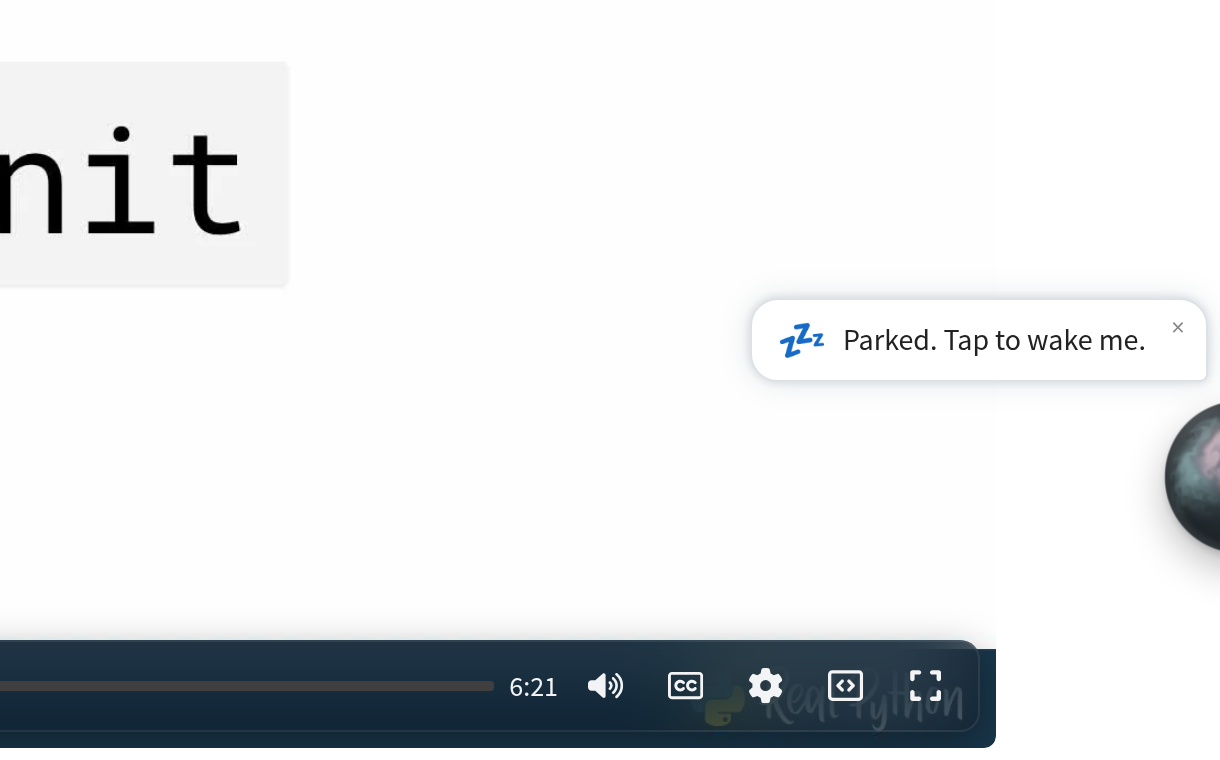
The orb slides halfway off the screen and dims, as if it’s asleep. The first time you park it, a short message such as Parked. Tap to wake me. confirms it and then fades after a few seconds. After that, the gray edge of the orb is all you’ll see, even after a reload in the same tab.
When you want the mentor back, tap the parked orb once to wake it. It slides back onto the screen, and a second click opens the chat panel. The orb’s tooltip also shows a Ctrl+M shortcut for opening the panel. After reading the answer, minimize the panel again with the arrow in its header.
You can use the mentor while watching full screen, too. The orb stays on screen, and the player’s control bar has a small orb button of its own. After a few seconds without mouse movement, the controls, the orb, and even an open chat panel fade out together. Move your pointer, and they all come back.
Typing doesn’t pause the lesson, though. Pause the video before you start typing so you don’t miss the next part while you’re asking about the last one. Or use that orb button in the control bar, which pauses the video for you. More on that button in the next section.