pyproject.toml
In Python, a pyproject.toml file is the standard configuration file that sits at the root of a project and declares how the project is built, what metadata it carries, and which packages it needs. It’s written in TOML, a plain-text format designed to be readable by both people and tools.
Three top-level tables are standardized. The [build-system] table names the build backend and the packages required to run it. The [project] table carries standard metadata such as name, version, requires-python, and the project’s dependencies.
The [tool] table gives every other tool its own namespace, so a formatter reads [tool.black] and a type checker reads [tool.mypy] from the same file. That’s how pyproject.toml came to collect settings that used to live in separate files like setup.cfg or tox.ini. Each table has its own audience:
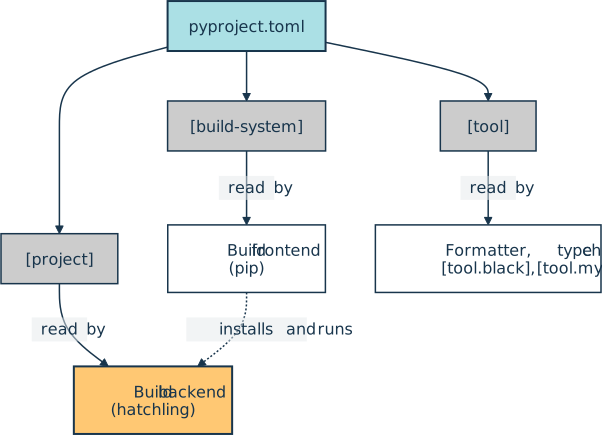
PEP 518 introduced the file in 2016 along with the [build-system] and [tool] tables, and PEP 621 added [project] in 2020. Because that metadata is declarative, a tool can read your project’s name and requirements by parsing the file, without executing the arbitrary Python that a setup.py would run.
Example
Say you’re packaging a small command-line weather tool whose code lives in a weather_cli/ directory. Declaring the build backend and the project metadata next to that directory is enough to make the checkout installable:
pyproject.toml
[build-system]
requires = ["hatchling"]
build-backend = "hatchling.build"

[project]
name = "weather-cli"
version = "0.1.0"
requires-python = ">=3.10"
dependencies = ["requests>=2.32"]

[project.scripts]
weather = "weather_cli.cli:main"
With that file in place, installing the project pulls in requests and puts a weather command on your PATH:
$ python -m pip install .
...
Successfully installed ... requests-2.34.2 weather-cli-0.1.0
Reading [build-system], pip installs hatchling into an isolated environment and asks it to build the project. The backend takes the name, version, and dependencies straight from [project], and the [project.scripts] entry becomes the console command. Every one of those decisions lives in one file that any packaging tool can read.
Related Resources

Tutorial
How to Manage Python Projects With pyproject.toml
Learn how to manage Python projects with the pyproject.toml configuration file. In this tutorial, you'll explore key use cases of the pyproject.toml file, including configuring your build, installing your package locally, managing dependencies, and publishing your package to PyPI.
For additional information on related topics, take a look at the following resources:
- Everyday Project Packaging With pyproject.toml (Course)
- How to Publish an Open-Source Python Package to PyPI (Tutorial)
- uv vs pip: Managing Python Packages and Dependencies (Tutorial)
- uv vs pip: Python Packaging and Dependency Management (Course)
- Using Python's pip to Manage Your Projects' Dependencies (Tutorial)
- Python Modules and Packages – An Introduction (Tutorial)
- How to Manage Python Projects With pyproject.toml (Quiz)
- Publishing Python Packages to PyPI (Course)
- How to Publish Your Own Python Package to PyPI (Course)
- How to Publish an Open-Source Python Package to PyPI (Quiz)
- uv vs pip: Managing Python Packages and Dependencies (Quiz)
- A Beginner's Guide to pip (Course)
- Using Python's pip to Manage Your Projects' Dependencies (Quiz)
- Python Modules and Packages: An Introduction (Course)
- Python Modules and Packages (Quiz)
Have a question about this? Mentor AI can show you examples, compare related terms, and point you to tutorials.
Ask Mentor AI

By Martin Breuss • Updated Aug. 26, 2026
