Claude Code Cheat Sheet for Python Developers
This Claude Code cheat sheet for Python developers condenses the commands, shortcuts, and config files you reach for every day: CLI flags and headless mode, slash commands, keyboard shortcuts, CLAUDE.md, permissions, settings, hooks, skills, subagents, and MCP servers. Every command matches the official Claude Code documentation, so you can keep this Claude cheat sheet open next to your terminal while you work.
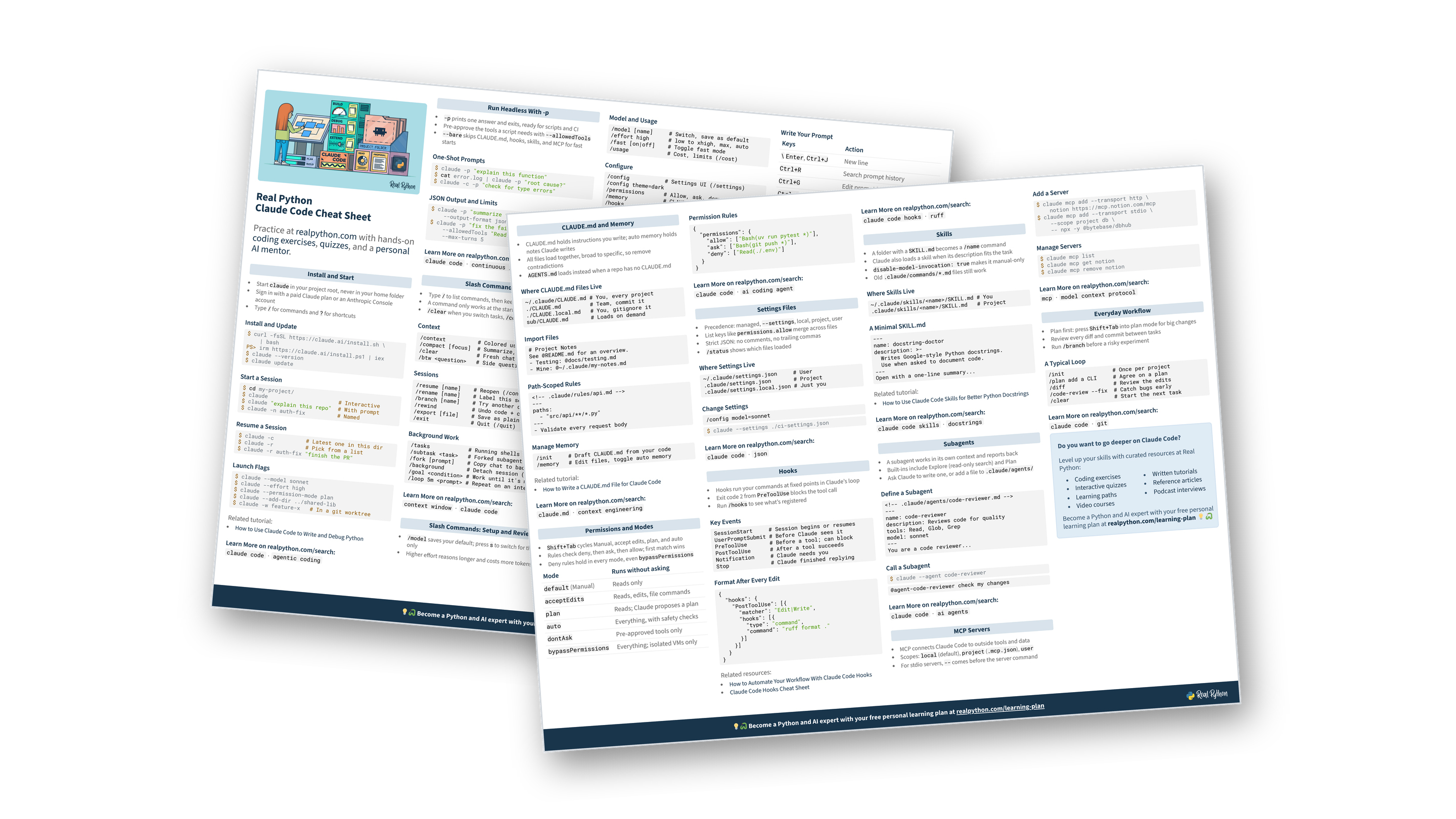
You can also download the information as a printable cheat sheet:
Free Bonus: Claude Code Cheat Sheet
Get a Claude Code Cheat Sheet (PDF) with slash commands, shortcuts, CLI flags, CLAUDE.md, permissions, hooks, skills, subagents, and MCP on two printable pages:
Practice with hands-on coding exercises, quizzes, and a personal AI mentor. Not sure what to learn next? Get your free personal learning plan.
New to Claude Code?
Install and Start
- Start
claudein your project root and avoid your home folder. - Sign in with a paid Claude plan or an Anthropic Console account.
- Type
/for commands and?for shortcuts.
Install on macOS and Linux
$ curl -fsSL https://claude.ai/install.sh \
    | bash
Install on Windows
PS> irm https://claude.ai/install.ps1 | iex
Check and Update
$ claude --version
$ claude update
Start a Session
$ cd my-project/
$ claude                      # Interactive
$ claude "explain this repo"  # With prompt
$ claude -n auth-fix          # Named
Resume a Session
$ claude -c          # Latest one in this dir
$ claude -r          # Pick from a list
$ claude -r auth-fix "finish the PR"
Launch Flags
$ claude --model sonnet
$ claude --effort high
$ claude --permission-mode plan
$ claude --add-dir ../shared-lib
$ claude -w feature-x   # In a git worktree
Walk through a full project in How to Use Claude Code to Write and Debug Python.
Want a guided first session?
Run Claude Code Headless
-pprints one answer and exits, so it fits scripts and CI.--allowedToolspre-approves the tools a script needs.--bareskips CLAUDE.md, hooks, skills, and MCP for faster starts.
One-Shot Prompts
$ claude -p "explain this function"
$ cat error.log | claude -p "root cause?"
$ claude -c -p "check for type errors"
JSON Output and Limits
$ claude -p "summarize this project" \
    --output-format json | jq -r '.result'
$ claude -p "fix the failing test" \
    --allowedTools "Read,Edit,Bash" \
    --max-turns 5
Scripting Claude Code?
Session Slash Commands
- Type
/to list commands, then keep typing to filter. - Put the command at the start of your message.
- Run
/clearwhen you switch tasks and/compactto keep going.
Context
| Command | What it does |
|---|---|
/context |
Show context usage |
/compact [focus] |
Summarize the chat to free space |
/clear |
Start a fresh chat. Also /new |
/btw [question] |
Ask a side question |
Sessions
| Command | What it does |
|---|---|
/resume [name] |
Reopen a session. Also /continue |
/rename [name] |
Label this session |
/branch [name] |
Try another direction |
/rewind |
Roll back code and chat. Also /undo |
/export [file] |
Save the chat as plain text |
/exit |
Quit. Also /quit |
Background Work
| Command | What it does |
|---|---|
/tasks |
List running shells and agents |
/subtask <task> |
Hand a task to a forked subagent |
/fork [prompt] |
Run a copy in the background |
/background |
Detach the session. Also /bg |
/goal [condition] |
Keep working until the goal is met |
/loop 5m <prompt> |
Repeat a prompt on an interval |
Not sure which one to use?
Setup and Review Slash Commands
- Press
sin the/modelpicker to switch for this session only. - Raise
/effortfor hard problems, at the cost of more tokens.
Model and Usage
| Command | What it does |
|---|---|
/model [name] |
Switch model and save it as default |
/effort high |
Set effort from low to max, or auto |
/fast |
Toggle fast mode, or pass on or off |
/usage |
Show cost and limits. Also /cost |
Configure
| Command | What it does |
|---|---|
/config |
Open settings. Also /settings |
/config theme=dark |
Set one key directly |
/permissions |
Edit allow, ask, and deny rules |
/memory |
Edit memory files |
/hooks |
View configured hooks |
/skills |
List and toggle skills |
/mcp |
Manage MCP servers and OAuth |
/doctor |
Diagnose your setup |
/status |
Show version and account |
Plan and Review
| Command | What it does |
|---|---|
/init |
Draft a CLAUDE.md |
/plan [task] |
Enter plan mode |
/diff |
Review the working tree |
/code-review --fix |
Find and fix bugs |
/code-review ultra |
Run a deep cloud review |
/security-review |
Find security issues |
/simplify |
Clean up the code |
Plan first, then edit?
Free Bonus: Download the Claude Code Cheat Sheet PDF and keep the essentials at hand.
More Slash Commands
- Your skills and plugin skills share the same
/menu. - MCP server prompts show up as
/server:prompt.
Workspace
| Command | What it does |
|---|---|
/add-dir <path> |
Grant access to another directory |
/cd <path> |
Move the session and keep the chat |
/ide |
Connect your IDE |
/copy [N] |
Copy a response |
/insights |
Report on your sessions |
Look and Feel
| Command | What it does |
|---|---|
/theme |
Pick a color theme |
/color [color] |
Set the prompt bar color |
/statusline |
Configure the status line |
/keybindings |
Edit the shortcuts file |
/help |
List all commands |
/release-notes |
See what’s new |
Extend
| Command | What it does |
|---|---|
/plugin |
Browse and install plugins |
/reload-skills |
Pick up new skills |
/workflows |
Watch dynamic workflows |
/schedule |
Set up recurring cloud routines |
Want to extend Claude Code?
Keyboard Shortcuts
- On macOS, press
OptionforAlt. Most of these need Option set as Meta, butOption+Tworks without it.
Control the Session
| Keys | Action |
|---|---|
Shift+Tab |
Cycle permission modes |
Esc |
Interrupt Claude |
Esc Esc |
Clear input or rewind |
Ctrl+C |
Interrupt, clear, or exit when pressed twice |
Ctrl+O |
Toggle transcript viewer |
Ctrl+B |
Background a running task |
Ctrl+T |
Toggle the task checklist |
Alt+P |
Switch model |
Alt+T |
Toggle extended thinking |
Alt+O |
Toggle fast mode |
Ctrl+L |
Redraw the screen |
Write Your Prompt
| Keys | Action |
|---|---|
\ Enter, Ctrl+J |
New line |
Shift+Enter |
New line in most terminals |
Ctrl+R |
Search prompt history |
Ctrl+G |
Edit prompt in your editor |
Ctrl+S |
Stash or restore the prompt |
Ctrl+V |
Paste an image |
Cmd+V |
Paste an image in iTerm2 |
Alt+V |
Paste an image on Windows or WSL |
! at start |
Shell mode |
@ |
Mention a file or subagent |
? |
Show all shortcuts |
Curious about @ and !?
CLAUDE.md and Memory
- CLAUDE.md holds instructions you write. Auto memory holds notes Claude writes.
- All files load together from broad to specific, so remove contradictions.
- Since v2.1.277,
AGENTS.mdloads when a repo has no CLAUDE.md.
Where CLAUDE.md Files Live
| File | Scope |
|---|---|
~/.claude/CLAUDE.md |
You, in every project |
./CLAUDE.md |
Your team. Commit it |
./CLAUDE.local.md |
You, in this project |
sub/CLAUDE.md |
Loads on demand |
Import Files
# Project Notes
See @README.md for an overview.
- Testing: @docs/testing.md
- Mine: @~/.claude/my-notes.md
Scope a Rule in .claude/rules/api.md
---
paths:
  - "src/api/**/*.py"
---
- Validate every request body
Set up global, project, and local files in How to Write a CLAUDE.md File for Claude Code.
Starting a CLAUDE.md?
Permissions and Modes
Shift+Tabcyclesdefault,acceptEdits, andplan, plusautowhen it’s available.- Since v2.1.283, most terminal and VS Code sessions start in
auto. - The UI labels
defaultmode as Manual. - Rules check deny, then ask, then allow. The first match wins.
- Deny rules hold in every mode, even
bypassPermissions.
| Mode | Runs without asking |
|---|---|
default |
Reads only |
acceptEdits |
Reads, edits, file commands |
plan |
Reads to draft a plan |
auto |
Everything, with safety checks |
dontAsk |
Pre-approved tools and file reads |
bypassPermissions |
Everything, in isolated VMs |
Permission Rules
{
  "permissions": {
    "allow": ["Bash(uv run pytest *)"],
    "ask": ["Bash(git push *)"],
    "deny": ["Read(./.env)"]
  }
}
Still fuzzy on permission rules?
Free Bonus: Download the Claude Code Cheat Sheet PDF and keep the essentials at hand.
Settings Files
- Managed settings win, followed by
--settings, local, project, and user. - List keys like
permissions.allowmerge across files. - Settings files are strict JSON with no comments or trailing commas.
/statusshows which files loaded.
Where Settings Live
| File | Scope |
|---|---|
~/.claude/settings.json |
User |
.claude/settings.json |
Project, shared |
.claude/settings.local.json |
Project, just you |
Two files, one key?
Hooks
- Hooks run your commands at fixed points in Claude’s loop.
- Exit code 2 from
PreToolUseblocks the tool call. /hooksshows what’s registered.
Key Events
| Event | When it runs |
|---|---|
SessionStart |
Session begins or resumes |
UserPromptSubmit |
Before Claude sees your prompt |
PreToolUse |
Before a tool runs. Can block it |
PostToolUse |
After a tool succeeds |
Notification |
Claude needs your input |
Stop |
Claude finished replying |
Format After Every Edit
{
  "hooks": {
    "PostToolUse": [{
      "matcher": "Edit|Write",
      "hooks": [{
        "type": "command",
        "command": "ruff format ."
      }]
    }]
  }
}
Go deeper with these hooks resources:
- How to Automate Your Workflow With Claude Code Hooks
- Claude Code Hooks Cheat Sheet for Python Developers
Wondering how the matcher works?
Skills
- A folder with a
SKILL.mdbecomes a/namecommand. - Claude also loads a skill when its description fits the task.
disable-model-invocation: truemakes a skill manual-only.- Old
.claude/commands/*.mdfiles still work.
Where Skills Live
| File | Scope |
|---|---|
~/.claude/skills/<name>/SKILL.md |
You |
.claude/skills/<name>/SKILL.md |
Project |
A Minimal SKILL.md
---
name: docstring-doctor
description: >-
  Writes Google-style Python docstrings.
  Use when asked to document code.
---
Open with a one-line summary...
Claude follows the instructions below the frontmatter each time the skill runs.
Go deeper with this skills resource:
Think you’ve got skills down?
Subagents
- A subagent works in its own context and reports back.
- Built-in subagents include Explore, which searches without editing, and Plan.
- Claude can write one for you, or you can add a file to
.claude/agents/.
Define .claude/agents/code-reviewer.md
---
name: code-reviewer
description: Reviews code for quality
tools: Read, Glob, Grep
model: sonnet
---
You are a code reviewer...
Run the Session as an Agent
$ claude --agent code-reviewer
Call a Subagent
@agent-code-reviewer check my changes
Skill or subagent?
Free Bonus: Download the Claude Code Cheat Sheet PDF and keep the essentials at hand.
MCP Servers
- MCP connects Claude Code to outside tools and data.
- Scopes are
local,project, anduser, withlocalas the default. - Project scope saves servers to a shared
.mcp.jsonfile. - For stdio servers,
--comes before the server command. - Connect databases with a read-only user.
Add a Server
$ claude mcp add --transport http \
    notion https://mcp.notion.com/mcp
$ claude mcp add --transport stdio \
    --scope project db \
    -- npx -y @bytebase/dbhub \
    --dsn "postgresql://readonly:pw@host/db"
Manage Servers
$ claude mcp list
$ claude mcp get notion
$ claude mcp remove notion
Want to go deeper on MCP?
Everyday Workflow
- Switch to plan mode with
Shift+Tabbefore big changes. - Review every diff and commit between tasks.
- Run
/branchbefore a risky experiment. /rewindrestores Claude’s file edits but not changes from shell commands.
A Typical Loop
| Command | What it does |
|---|---|
/init |
Once per project |
/plan add a CLI |
Agree on a plan |
/diff |
Review the edits |
/code-review --fix |
Catch bugs early |
/clear |
Start the next task |
Ready to test yourself?
Do you want to go deeper on Claude Code?
Level up your skills with curated resources at Real Python:
- Coding exercises
- Interactive quizzes
- Learning paths
- Video courses
- Written tutorials
- Reference articles
- Podcast interviews
Become a Python and AI expert with your free personal learning plan at realpython.com/learning-plan 💡🐍
Ready to go beyond the cheat sheet?
You can download this information as a printable cheat sheet:
Free Bonus: Claude Code Cheat Sheet
Get a Claude Code Cheat Sheet (PDF) with slash commands, shortcuts, CLI flags, CLAUDE.md, permissions, hooks, skills, subagents, and MCP on two printable pages:
